LoggingTracer
Learn how to inspect the data flowing through your Haystack pipelines in real time with the LoggingTracer.
| Tracer class | LoggingTracer |
| How to enable | tracing.enable_tracing(LoggingTracer(...)) |
| Content tracing | Required to log inputs and outputs. Set tracing.tracer.is_content_tracing_enabled = True |
| Package | Built into Haystack |
| GitHub link | https://github.com/deepset-ai/haystack/blob/main/haystack/tracing/logging_tracer.py |
Overview
Use Haystack's LoggingTracer logs to inspect the data that's flowing through your pipeline in real time.
This feature is particularly helpful during experimentation and prototyping, as you don’t need to set up any tracing backend beforehand.
Usage
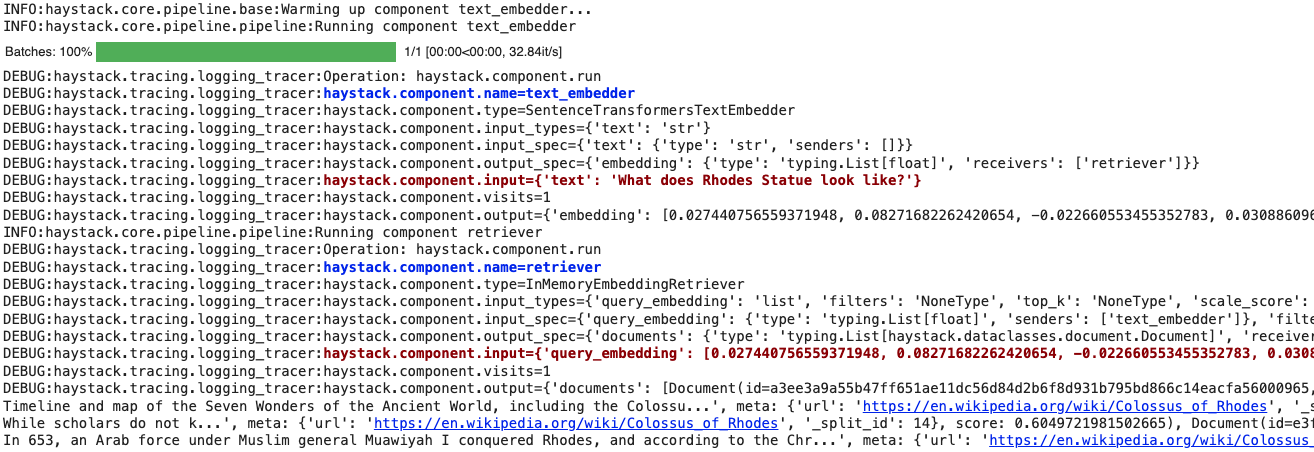
Here’s how you can enable this tracer. In this example, we are adding color tags (this is optional) to highlight the components' names and inputs:
python
import logging
from haystack import tracing
from haystack.tracing.logging_tracer import LoggingTracer

logging.basicConfig(
    format="%(levelname)s - %(name)s -  %(message)s",
    level=logging.WARNING,
)
logging.getLogger("haystack").setLevel(logging.DEBUG)

tracing.tracer.is_content_tracing_enabled = (
    True  # to enable tracing/logging content (inputs/outputs)
)
tracing.enable_tracing(
    LoggingTracer(
        tags_color_strings={
            "haystack.component.input": "\x1b[1;31m",
            "haystack.component.name": "\x1b[1;34m",
        },
    ),
)
Here’s what the resulting log would look like when a pipeline is run: