Langfuse
Learn how to trace your Haystack pipelines with Langfuse.
| Tracer class | LangfuseTracer |
| How to enable | Enable the tracer with tracing.enable_tracing(LangfuseTracer(langfuse)), or add the LangfuseConnector component to your pipeline |
| Content tracing | Required. Set HAYSTACK_CONTENT_TRACING_ENABLED to true |
| Package | langfuse-haystack |
| API reference | langfuse |
| GitHub link | https://github.com/deepset-ai/haystack-core-integrations/tree/main/integrations/langfuse |
Overview
Trace your Haystack pipelines with the Langfuse UI. Langfuse captures detailed information about pipeline runs, like API calls, context data, prompts, and more. Use it to monitor model performance such as token usage and cost, find areas for improvement, and create datasets from your pipeline executions.
Installation
Install the langfuse-haystack package:
Prerequisites
- An active Langfuse account.
- Set the
LANGFUSE_SECRET_KEYandLANGFUSE_PUBLIC_KEYenvironment variables with your Langfuse secret and public keys, found in your account profile. - Set the
HAYSTACK_CONTENT_TRACING_ENABLEDenvironment variable totrueto enable tracing.
To ensure proper tracing, always set environment variables before importing any Haystack components. This is crucial because Haystack initializes its internal tracing components during import. An even better practice is to set these environment variables in your shell before running the script.
Usage
Enable the LangfuseTracer directly to trace any Haystack pipeline, without adding a component to it.
import os

os.environ["LANGFUSE_HOST"] = "https://cloud.langfuse.com"
os.environ["LANGFUSE_SECRET_KEY"] = "<your-secret-key>"
os.environ["LANGFUSE_PUBLIC_KEY"] = "<your-public-key>"
os.environ["HAYSTACK_CONTENT_TRACING_ENABLED"] = "true"

from langfuse import Langfuse

from haystack import Pipeline, tracing
from haystack.components.builders import ChatPromptBuilder
from haystack.components.generators.chat import OpenAIChatGenerator
from haystack.dataclasses import ChatMessage

from haystack_integrations.tracing.langfuse import LangfuseTracer

# Enable the Langfuse tracer. The client reads your keys from the environment.
langfuse = Langfuse()
langfuse_tracer = LangfuseTracer(langfuse, name="Chat example")
tracing.enable_tracing(langfuse_tracer)

pipe = Pipeline()
pipe.add_component("prompt_builder", ChatPromptBuilder())
pipe.add_component("llm", OpenAIChatGenerator())
pipe.connect("prompt_builder.prompt", "llm.messages")

messages = [
    ChatMessage.from_system(
        "Always respond in German even if some input data is in other languages.",
    ),
    ChatMessage.from_user("Tell me about {{location}}"),
]

response = pipe.run(
    data={
        "prompt_builder": {
            "template_variables": {"location": "Berlin"},
            "template": messages,
        },
    },
)
print(response["llm"]["replies"][0])

# Flush any pending spans before the program exits
langfuse_tracer.flush()
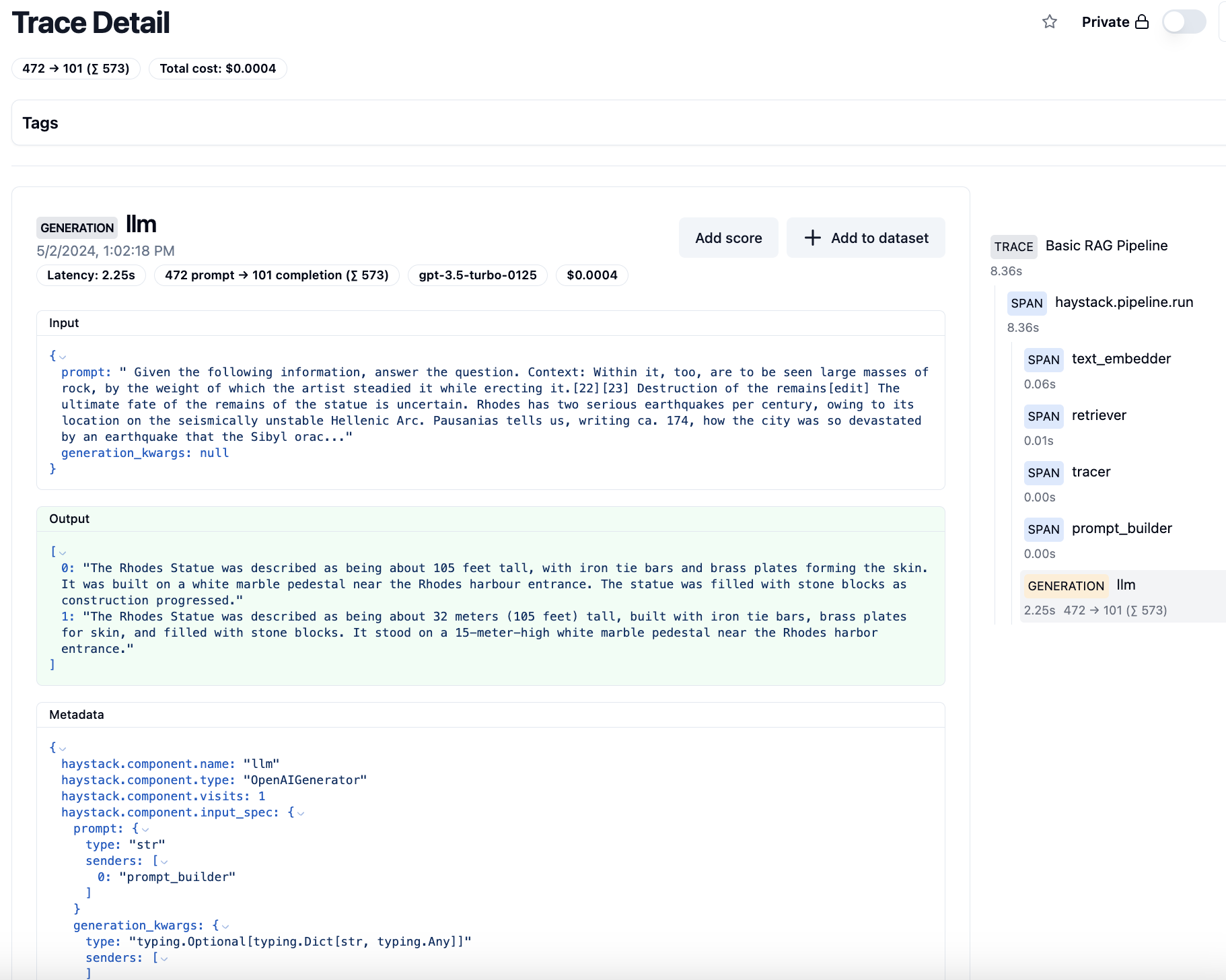
Each pipeline run produces one trace that includes the entire execution context, including prompts, completions, and metadata. You can then view the trace in the Langfuse UI.
Alternative: the LangfuseConnector component
If you prefer to manage tracing as part of your pipeline definition, you can add the LangfuseConnector component instead. It enables the same Langfuse tracing, exposes the trace_url as an output, and supports a custom SpanHandler for advanced span processing.
See the LangfuseConnector documentation page for full usage examples and advanced span customization, or read the blog post for a complete walkthrough.